Stop Wasting Tokens: Master the Fork Feature in VS Code Copilot
The Problem You Don’t Know You’re Solving
You’ve spent 20 minutes building context with Copilot Chat loading files, having detailed discussions, establishing context about your project. Then you think: “What if I try a completely different approach?”
Here’s the painful reality: Most developers start a brand new chat, losing all that context and wasting tokens re-loading the same files and information.
Here’s the solution: The /fork command branches your entire conversation preserving every file reference, every discussion point, every piece of context while letting you explore a completely different path. You’re not reloading anything. You’re saving 70-80% of the tokens you’d waste starting fresh.
This post shows you exactly how to do it in 2 minutes. It’s one simple command that fixes a workflow problem you don’t even realize you have.
What is Context Forking?
When you’re working with Copilot Chat, every conversation builds up context files you’ve referenced, code you’ve discussed, project details you’ve shared. Normally, starting a new chat means starting from scratch.
Forking solves this problem. It creates a new chat thread that inherits all the context from your current chat, letting you branch into a new direction without reloading everything.
Real-World Scenario
Imagine you’re building an API and have:
- Discussed the architecture
- Loaded your API files
- Reviewed your database schema
- Explored implementation details
Now you want to try a completely different approach. With forking, you create a branch from this rich context you don’t have to re-reference every file from scratch.
Step-by-Step Guide: How to Fork Context
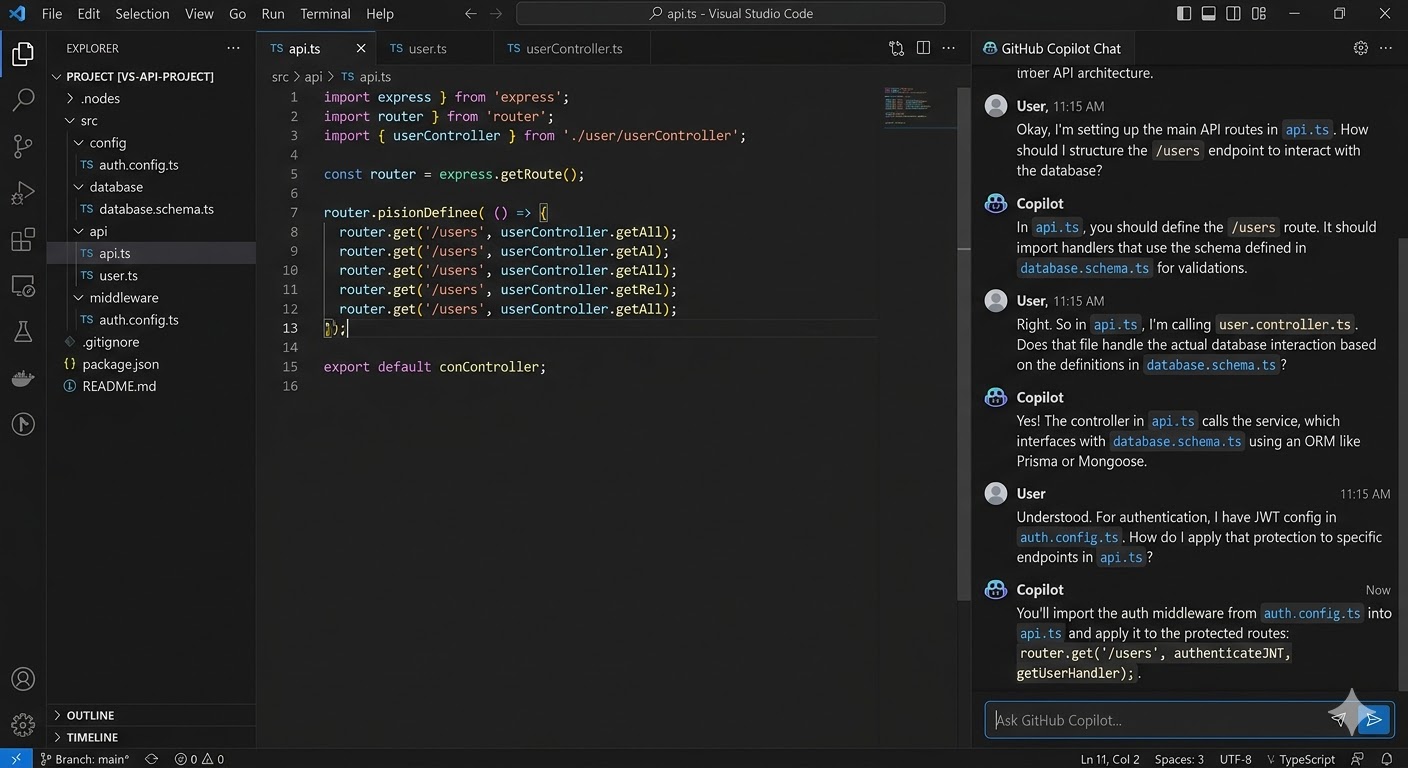
Step 1: Build Your Initial Context
First, have an active Copilot Chat conversation where you’ve loaded context:
- Ask questions about your project
- Reference files using
@filename - Discuss specific code sections
- Load your workspace structure
Example questions you might ask:
- “What’s the best way to structure this API?”
- “Can you review my authentication logic?”
- “Help me optimize this function”
Step 2: Type the /fork Command
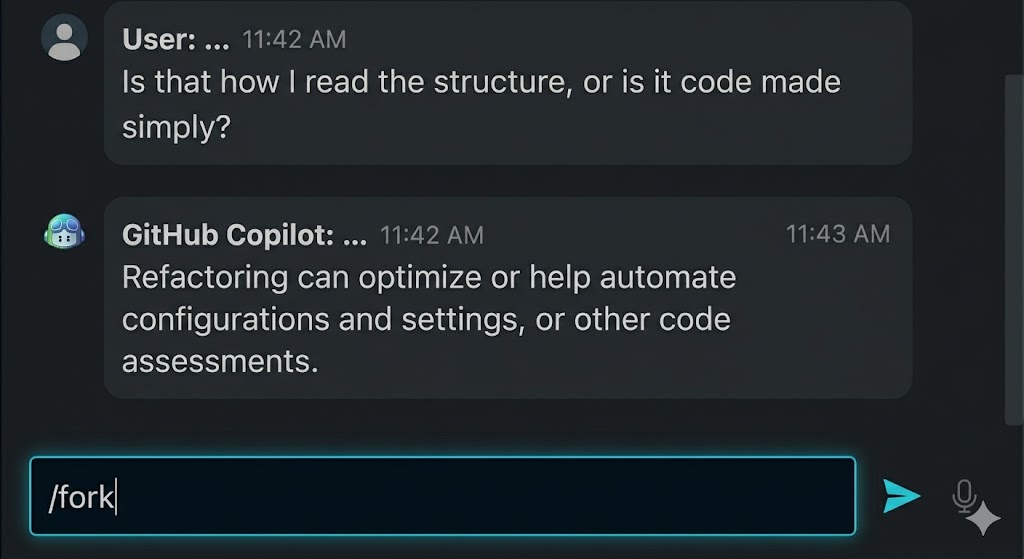
Once you’ve built up sufficient context in your chat:
- Click in the Copilot Chat input field (at the bottom of the chat panel)
- Type
/fork - Press Enter
That’s it. The forking process initiates immediately.
Step 3: Understand What Happened
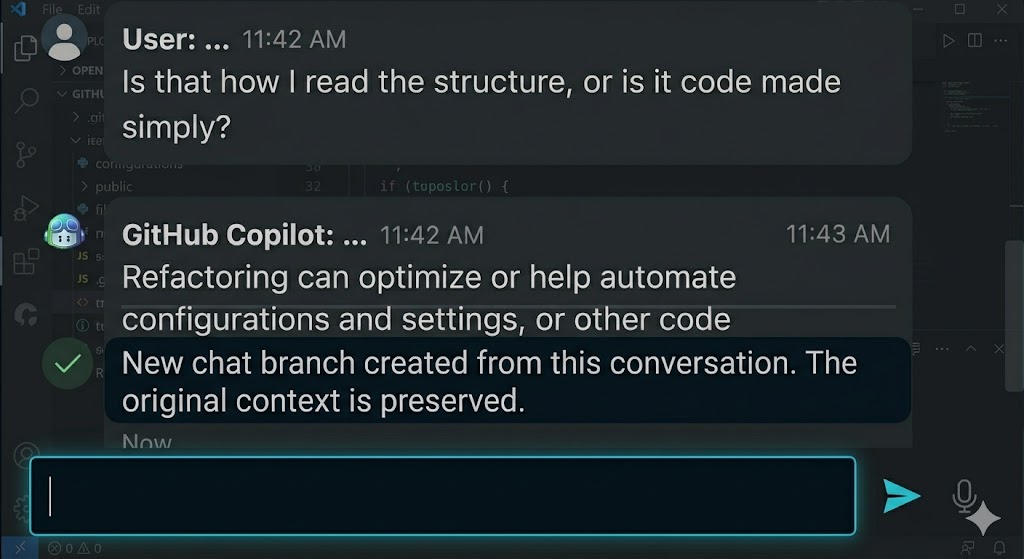
After you execute /fork:
- A new chat thread is created
- Your original chat remains untouched with all its context
- The new thread inherits all context from the original
- You’re automatically switched to the new forked conversation
You should see a confirmation or notice indicating the fork was successful.
Step 4: View Both Conversations
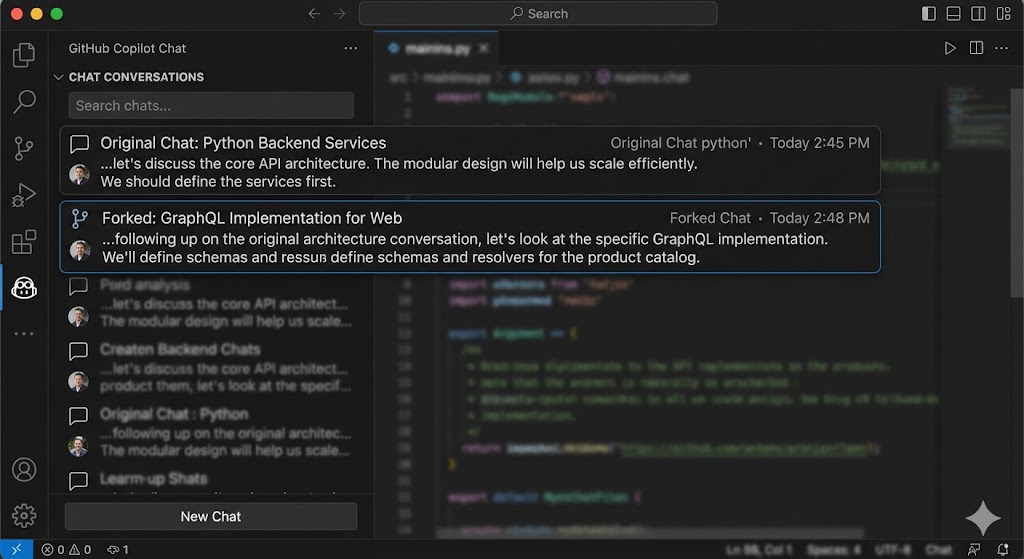
Now you can explore different directions in your forked chat. To switch between your original and forked conversations:
- Look at the chat history panel on the left
- You’ll see both conversations listed
- Click on either conversation to switch between them
- All context is preserved in each thread
Step 5: Explore Different Approaches
In your forked chat, you can now:
- Ask different questions
- Try alternative implementations
- Explore edge cases
- Test new ideas
Your original chat remains in the sidebar, ready to switch back to if needed.
Example workflow:
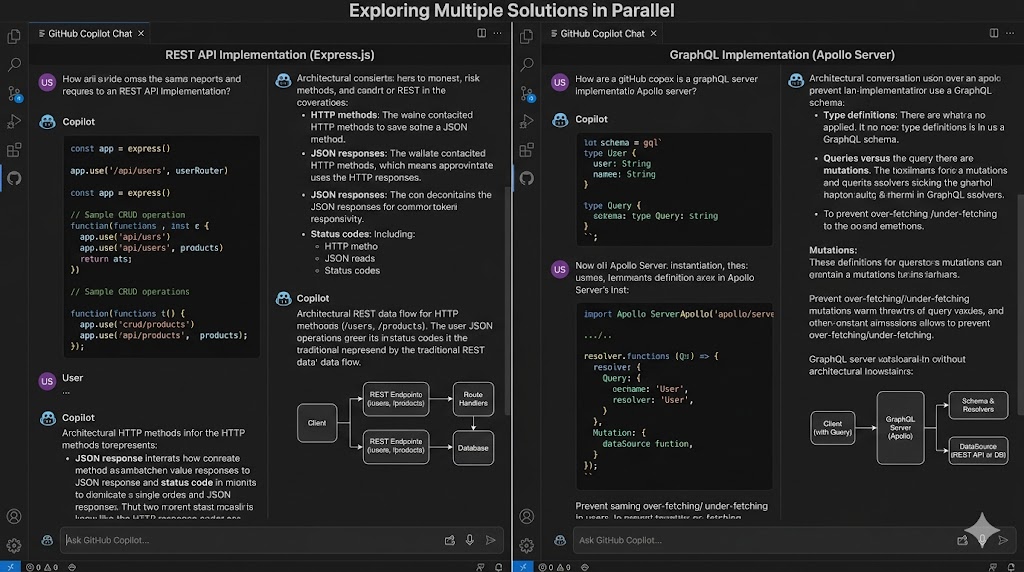
Original Chat: “Let me implement this with REST endpoints” ↓ (Fork) Forked Chat: “What if we used GraphQL instead?”
Both conversations maintain their separate context, allowing you to compare approaches side-by-side.
When Should You Use /fork?
Best Use Cases:
-
Exploring Multiple Solutions
- You’ve built context discussing one approach
- Want to try a completely different technique
- Don’t want to lose the original conversation
-
Parallel Problem Solving
- Debugging an issue in one direction
- Exploring an alternative solution simultaneously
- Need to compare multiple strategies
-
Pivoting to Related Tasks
- Discussing an authentication system
- Suddenly think about a different security approach
- Want to explore it without abandoning the original context
-
Teaching & Documentation
- One chat thread for implementation
- Fork to create documentation in another direction
- Keep implementation context separate from docs
-
Complex Projects
- Working on a large system with multiple components
- Need to explore one component deeply
- Fork allows focused exploration without context noise
When You Might NOT Need It:
- Simple, single-track questions
- When you’re done with a conversation and ready to start fresh
- Quick clarifications that don’t need full context
Pro Tips for Efficient Context Forking
Tip 1: Use Descriptive Openings
When you fork, add a comment in the new thread about what you’re exploring:
"In this fork, let's explore using caching instead of database queries"This helps you remember what each thread is focused on.
Tip 2: Strategic File References
Before forking, load the key files you’ll need in both threads using @filename. This avoids reloading later.
Tip 3: Switch Efficiently
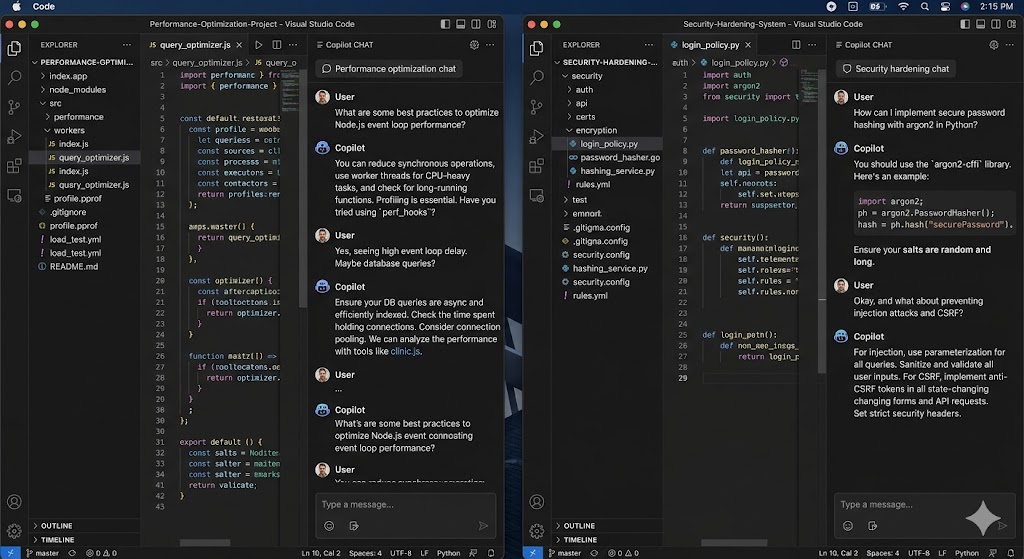
Use the chat sidebar to quickly switch between threads. You can have multiple windows side-by-side for visual comparison.
Tip 4: Clean Up Old Threads
If you decide against a forked approach, you can always delete that thread to keep your chat history clean. The original conversation remains.
Visual Context Map
Here’s how context flows when you fork:
Original Chat Thread
├── Context Loaded
│   ├── File A referenced
│   ├── File B referenced
│   ├── Discussion about problem X
│   └── 10 message history
│
└── /fork command executed
    │
    ├─→ Original Thread (unchanged)
    │   └── Can continue exploring same direction
    │
    └─→ Forked Thread (new branch)
        └── All original context inherited
            ├── File A available
            ├── File B available
            ├── Problem X context preserved
            └── Ready to explore different solution
Common Questions
Q: How much does forking save in tokens?
A: Significant. When you fork, you avoid reloading context (files, discussion history, project details). A typical reload costs 70-80% of the original context tokens. Forking eliminates this waste. For large codebases, that’s hundreds to thousands of tokens saved per fork.
Q: Does forking consume extra tokens?
A: No. Forking doesn’t reload context it branches what’s already loaded. You only use tokens when you make new requests in the forked chat not for duplicating context.
Q: Can I fork a fork?
A: Yes! You can fork from any chat thread, including previously forked threads. This allows for complex branching if you’re exploring multiple directions.
Q: What if I want to merge ideas from two forks?
A: You can manually copy-paste relevant code or discussions between threads. There’s no automatic merge, but you can reference insights from both conversations.
Q: How many forks can I have?
A: There’s no practical limit. However, for efficiency, keep only the threads you’re actively using.
Q: Do I lose context when I close VS Code?
A: Your chat history is saved, so you can return to any thread later. The context is preserved between sessions.
Practice Exercise: Fork Your First Context
Ready to try it yourself?
- Open VS Code and Copilot Chat
- Ask a question about any project file: “What does this function do?” (and reference a file with
@) - Ask a follow-up question to build context
- Type
/forkto create a new branch - Explore a different angle in the forked chat
- Switch back to your original chat using the sidebar
You’ve now experienced the power of context forking!
Conclusion
Forking context in VS Code Copilot is a simple but transformative feature. It’s not just about saving time it’s about being smart with your tokens. By mastering this workflow, you’ll:
- Save 70-80% of tokens by avoiding context reloads
- Explore multiple approaches simultaneously without waste
- Maintain parallel conversations for complex problems
- Keep your conversation history organized
- Work smarter with limited token budgets
The /fork command is your shortcut to more efficient, budget-conscious, creative problem-solving with Copilot. Once you start using it, you’ll wonder how you ever worked without it.
Quick Reference Card
| Task | How To | Token Benefit |
|---|---|---|
| Create a fork | Type /fork in chat, press Enter | Preserves all loaded context |
| Switch threads | Click different chat in left sidebar | No context reload = tokens saved |
| See all conversations | Look at chat history in left panel | Compare approaches without waste |
| Load context before forking | Use @ mentions to load files first | Maximizes benefit per fork |
| Compare two approaches | Keep both threads open, switch between them | Explore without reloading |
| Go back to original | Click original chat in sidebar | All original context intact |
Start forking today and unlock a whole new level of Copilot productivity!